

VPNs in China: eSIMs, Apps & Subscription Setup
VPNs in China for travelers are worth preparing before departure if you need your usual apps on hotel Wi-Fi or a mainland SIM. For a short visit, I would start with a travel eSIM or home-carrier roaming plan that routes data outside mainland China, then keep a VPN ready for the connections where you need it.
On ordinary mainland connections, Google services, YouTube, Instagram and several international messaging services are restricted. That does not mean you need a VPN for every travel task: Amap, Alipay, WeChat and other local services work on the local internet. The useful setup is one that handles both your China travel apps and the overseas services you want to keep using.
Quick takeaways
- Travel eSIM data and hotel Wi-Fi are different connections. Overseas apps working on one does not make them work on the other.
- Install, sign in and save instructions before flying. A VPN’s download page or sign-in service may be hard to reach after arrival.
- A standalone VPN app and a subscription client are different purchases. Shadowrocket and Clash-style clients need your own compatible server configuration or subscription.
- Choose a service with current mainland-China support for your device, not just a famous name. Then test your actual apps on the network you are using.
- Keep subscription URLs and QR codes private. They can contain access credentials, not just a website address.
In this guide
- 1. Travel eSIM, roaming or local Wi-Fi?
- 2. Do Chinese people use VPNs?
- 3. How to use a standalone VPN app
- 4. What a third-party subscription actually gives you
- 5. Shadowrocket on iPhone: import, refresh and connect
- 6. A Clash-style desktop setup
- 7. Connected, but your apps still do not work?
- 8. Quick answers before you fly
1. Travel eSIM, roaming or local Wi-Fi?
For a normal holiday, a travel-data plan with international routing is often the least work. Your phone still uses Chinese mobile coverage, but the data exits through a roaming gateway outside mainland China. That is why many travel eSIMs let you use your usual international apps without opening a separate VPN app.
The important feature is where the data is routed, not whether the SIM is digital. An international physical travel SIM or your home carrier’s roaming plan can offer the same type of connection. A mainland local SIM—or a locally routed eSIM—does not gain unrestricted access just because it is an eSIM.
Before choosing a plan, ask:
Does this exact China plan use international routing? Can I access the overseas services I need through its mobile data, and is hotspot/tethering allowed?
Also check your exact phone model, carrier lock, data allowance, expiry and activation trigger. Most travel eSIMs are data-only, so keep the number used by your bank available separately if you need its SMS messages.
Set up the line deliberately
- Install the travel eSIM on reliable internet before departure, at the time permitted by its activation rules.
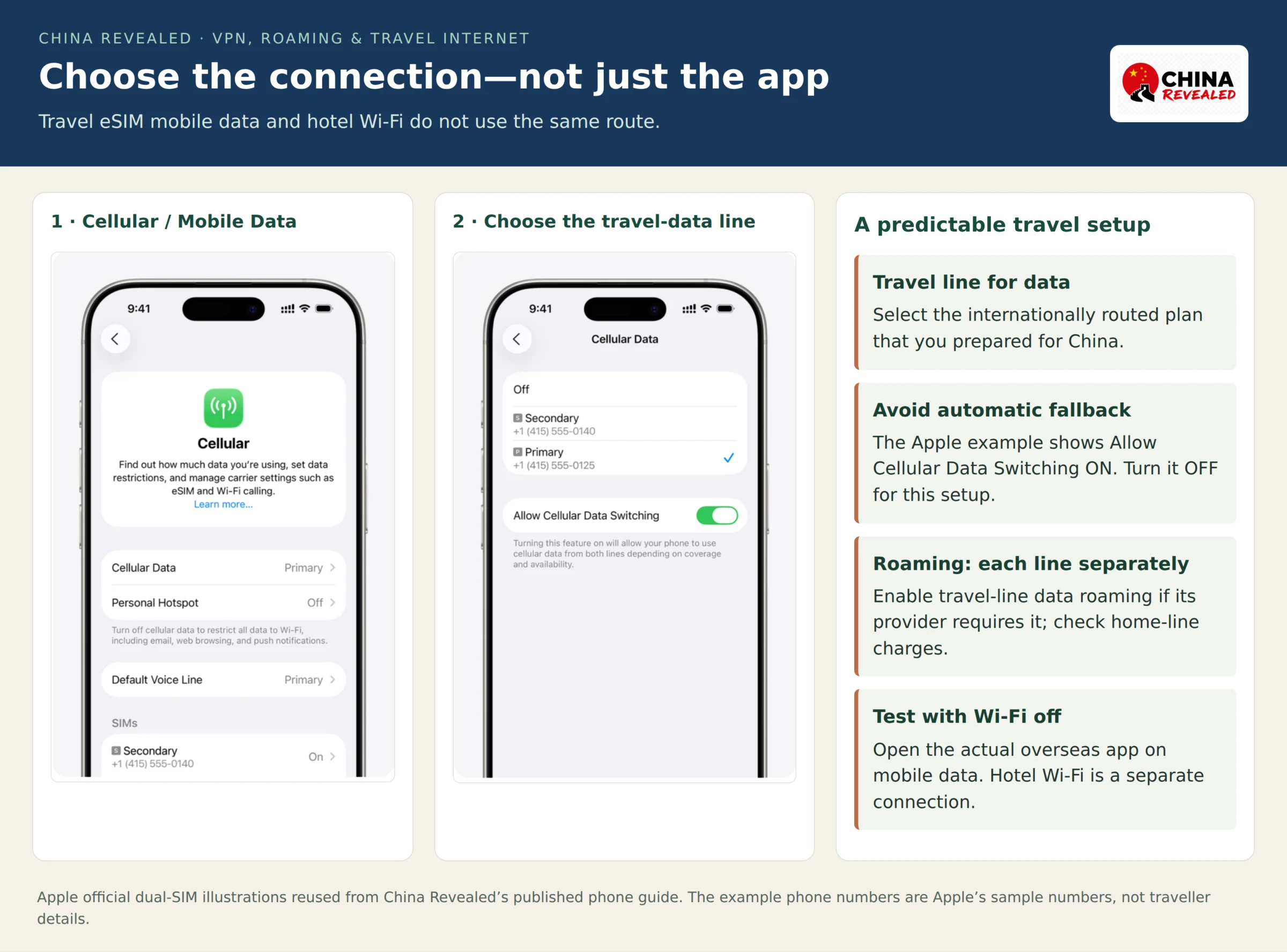
- On iPhone, open Settings → Cellular / Mobile Data → Cellular Data and select the travel line. On Android, use SIMs / SIM manager to choose the mobile-data line.
- Enable Data Roaming for the travel line if its provider requires it. Keep home-line data roaming off unless you intend to use that carrier’s roaming package.
- Turn off automatic mobile-data switching for a predictable setup. Label the lines Home and China Data so you can recognise them.
- After arrival, turn Wi-Fi off and test a service you use, such as Gmail or WhatsApp, through the travel data connection.
What happens when you join hotel Wi-Fi?
Your phone normally starts using the Wi-Fi connection instead of the eSIM’s mobile data. If overseas apps suddenly stop working, turn Wi-Fi off and try the travel-data connection again. There is no need to reinstall the app that was working five minutes earlier.
To use those services over ordinary hotel Wi-Fi, you need a suitable VPN/proxy connection or another supported access arrangement. If you are happy staying on travel mobile data, you may not need a VPN for that part of the trip.
For the full phone-number and bank-SMS setup, use our China SIM vs eSIM guide and phone setup walkthrough.
2. Do Chinese people use VPNs?
Yes. VPNs and other circumvention tools have a substantial user base in China, particularly among people who need overseas information, study resources or international work services. You may hear the Chinese word 翻墙—fānqiáng, literally “climbing over the wall,” used for accessing the restricted overseas internet.
Freedom House’s 2024 report described circumvention users as a minority numbering in the tens of millions. That is an external research estimate, not an official count of today’s VPN users. China does not publish a reliable nationwide total, so I would not turn that estimate into a precise “X million people use VPNs in 2026” claim.
People use different arrangements: a provider’s own app, a proxy subscription imported into a client, or an employer’s managed connection. They are not interchangeable. A popular brand, a successful app download or a VPN icon alone does not tell you whether a particular service works on your current mainland connection.
China restricts unauthorized VPN services and international network channels; there is no blanket tourist exemption. Check current official travel guidance and ask your IT team about an approved setup if you are travelling for work.
3. How to use a standalone VPN app
This is the simpler software route: one provider, its own app, your account and a list of connection locations. I would use this route if you want less configuration work, rather than making your first holiday the moment you learn to manage proxy files.
This guide does not recommend a VPN company. Before choosing one, ask its support a specific question:
Does your service currently support connections from mainland China on my device and operating system? What setup should I complete before departure?
A generic “works worldwide” claim is not the answer. Even major providers publish China-specific connection troubleshooting, and support can differ between iPhone, Android, Windows and Mac.
Before departure
- Download the genuine app through the provider’s official link or the normal app store. Avoid similarly named clones and unsolicited installation links.
- Create or sign into your account and check that the service plan is active. Installing the app does not activate a paid account by itself.
- Follow the provider’s current China instructions for your device. Save those instructions and a support contact offline.
- Open the app, choose the provider’s recommended location or Auto / Recommended option and tap Connect.
- Approve the device’s VPN/network permission prompt for the app you deliberately installed. Enter any device passcode on your own phone—not on a provider’s web page.
- Wait for Connected, then open an actual service you intend to use. This checks your setup at home; repeat the app test after arrival in China.
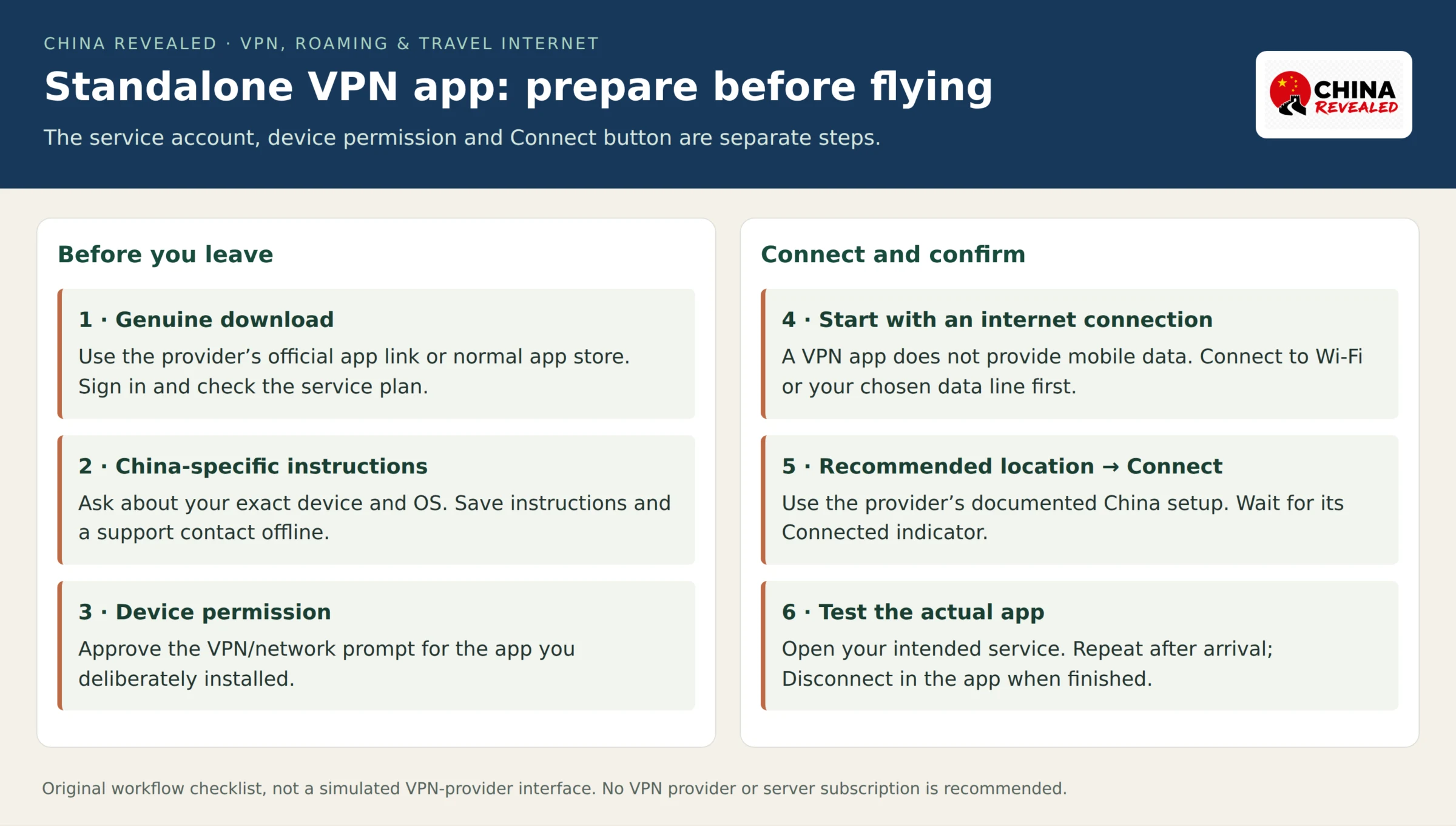
On arrival, connect to Wi-Fi or mobile data first, then open the VPN app and connect. A VPN does not supply mobile data or replace an eSIM plan. If the service fails, use its documented China connection options or support rather than randomly changing every setting.
To finish, use Disconnect inside the app. If internet access stops after disconnecting, check whether the app has an always-on or kill-switch setting that intentionally blocks traffic without the VPN.
4. What a third-party subscription actually gives you
The second route separates the client app from the connection service. On iPhone, a well-known example is Shadowrocket, commonly called 小火箭—“little rocket.” On computers and Android, you will see various Clash-style clients.
The client reads configuration and directs traffic. The subscription supplies the server entries and often routing rules, an expiry date and a data allowance. Buying or installing the client does not give you those servers. Shadowrocket’s App Store description explicitly says it does not include proxy services or server resources.
In Chinese discussions, a subscription provider may be called an 机场—jīchǎng. Here that is slang for a proxy subscription service, not an actual airport. A 节点—jiédiǎn, or node, is a connection endpoint or server entry.
Get these details from the configuration provider before importing anything:
- The exact client and operating system it supports.
- A compatible subscription URL, QR code or local configuration file.
- Expiry, data allowance and the supported number of devices.
- Current mainland-China connection instructions and a way to contact support.
A Shadowrocket link is not automatically a Clash/Mihomo configuration. Ask for the export intended for your chosen client. If a conversion is necessary, use the provider’s supported method rather than pasting your private URL into an unknown conversion website.
Treat that URL and its QR code like a password. Save them privately, and hide them in screenshots before asking for help. If exposed, ask the provider to reset or revoke the link.
5. Shadowrocket on iPhone: import, refresh and connect
Use the genuine Shadowrocket App Store listing. The client and your third-party connection subscription are separate. A different App Store region may affect availability, so check before you travel rather than relying on finding it after arrival.
Import a subscription URL
- Copy the Shadowrocket-compatible subscription URL from your provider’s own account page.
- Open Shadowrocket and tap + on the Home screen.
- Open Type and select Subscribe, rather than leaving a single-server protocol selected.
- Paste the subscription into URL, then use Save / Done, depending on the version.
- Return to Home and check that the subscription and its server entries have appeared.
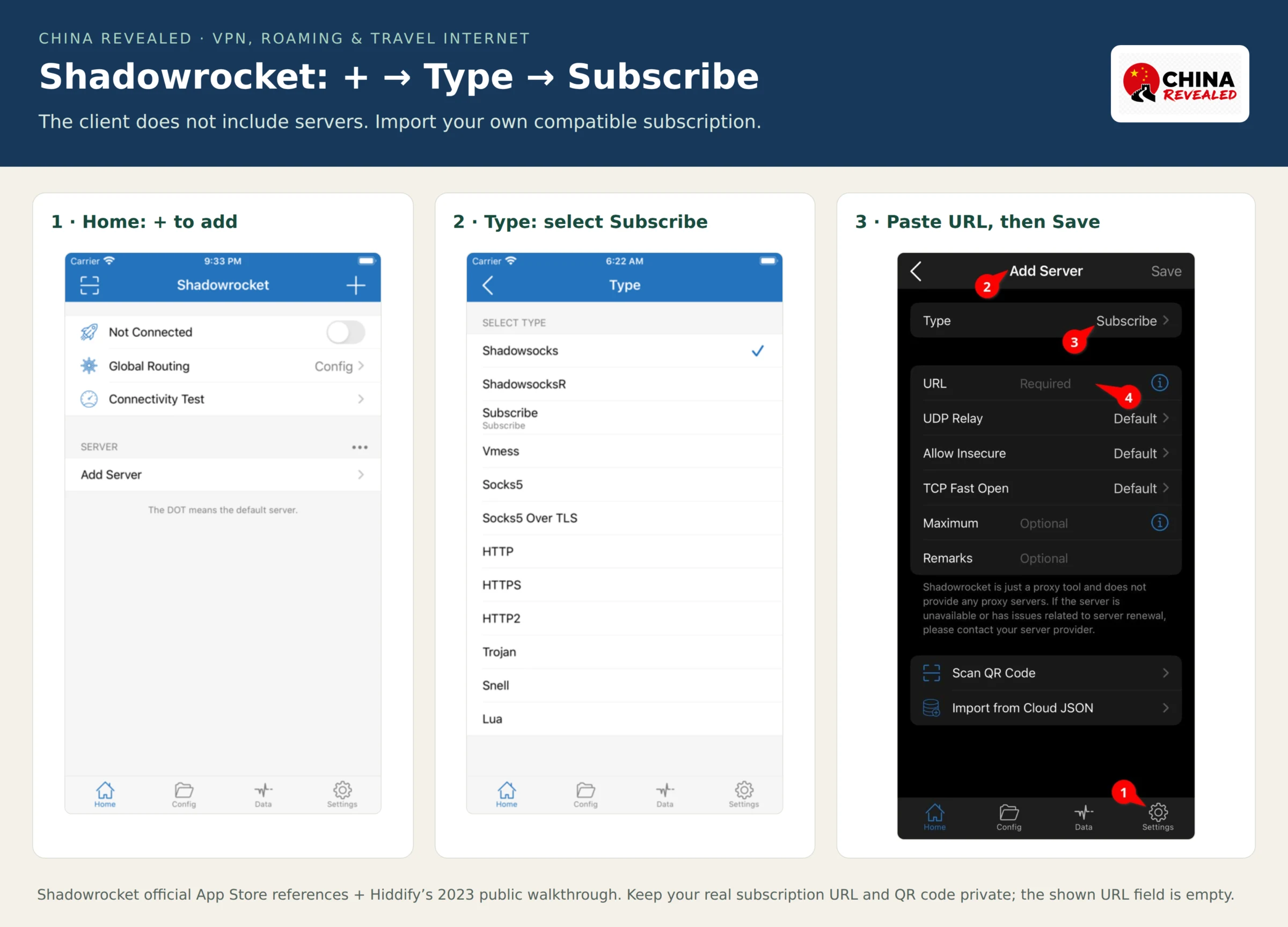
If your provider supplies a QR code, use the scanner on Home or Scan QR Code in the add screen. Display the code on another device or use an image-import option if your version offers one; do not expect the phone’s camera to scan its own screen. A one-click “open in Shadowrocket” link is another possible provider workflow—check the source before accepting it.
Refresh, choose a node and connect
Use the subscription’s refresh/update control to retrieve current entries, then select a node or the provider’s recommended automatic group. In the reference interface, the refresh icon appears beside the subscription.
Open Global Routing and follow the provider’s supplied routing configuration. Shadowrocket interfaces commonly use Config, Proxy and Direct: Config follows the configuration’s rules, Proxy routes the traffic it handles through the selected proxy, and Direct uses the ordinary connection. Start with the provider’s intended Config setup, not an arbitrary mode.
Turn on the connection switch and approve the iOS VPN configuration prompt if it appears. Then use Connectivity Test and open an actual overseas service. A latency result is useful for choosing between entries; the final check is whether your intended app loads and sends or receives data.
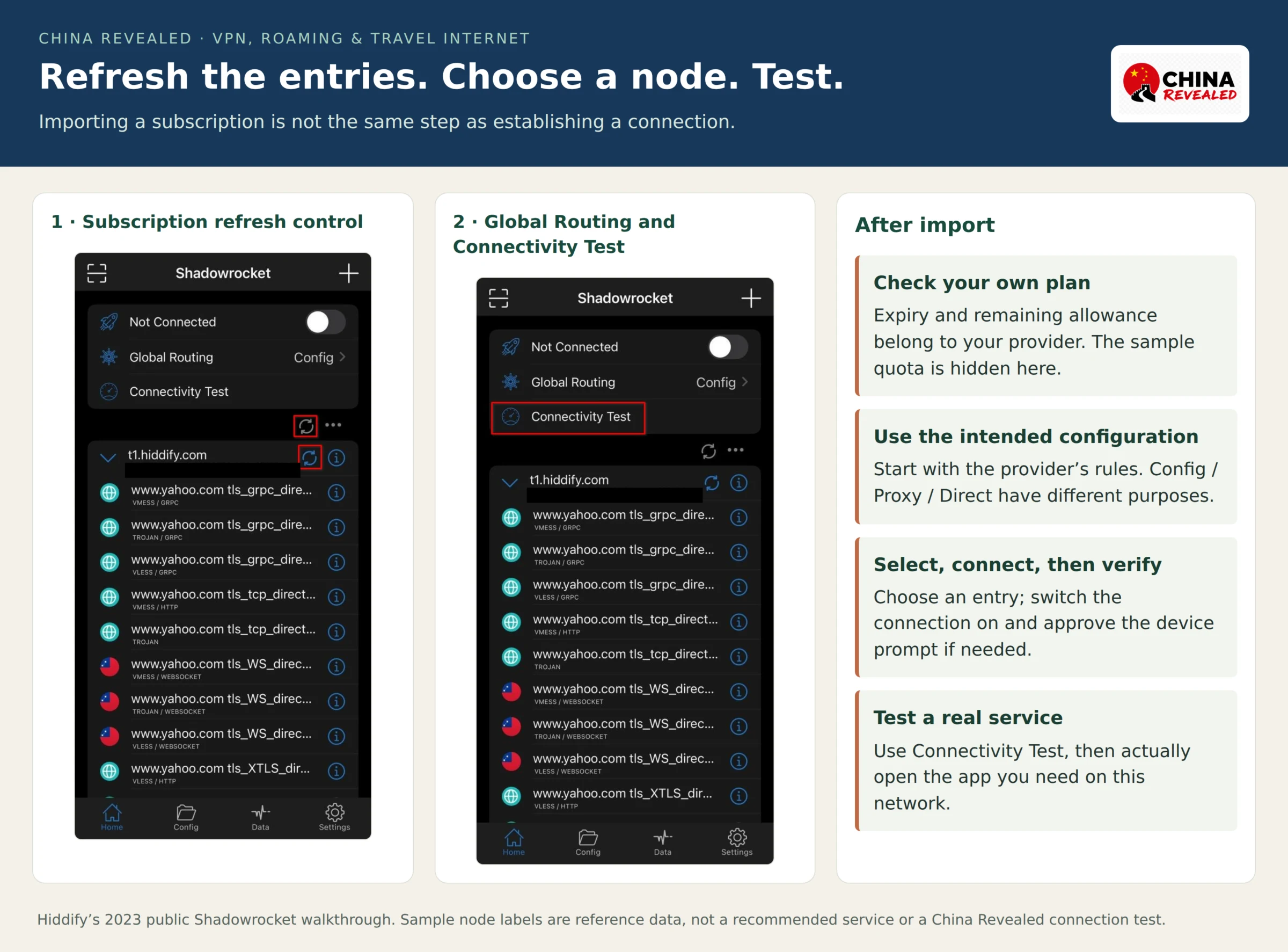
If import fails, check that you copied the complete URL, the plan is active and the export is meant for Shadowrocket. A normal account-login page pasted into the URL field is not a subscription. Ask the configuration provider for a fresh compatible link rather than inventing host, port and password values.
6. A Clash-style desktop setup
“Clash” is a family name people use loosely, not one current app with identical menus on every device. For a concrete desktop example, this walkthrough uses Clash Verge Rev, a maintained Windows, macOS and Linux client built around the Mihomo core. Android clients may use the same configuration family, but their permission and connection controls are different.
Use the project’s official repository and releases and its official quick-start guide. Do not assume a similarly named download website or an old “Clash for Windows” tutorial is the current project.
Import and activate the configuration
- Ask your configuration provider for a Clash/Mihomo-compatible subscription or YAML file.
- Open Profiles / Subscriptions—shown as 订阅 in the reference interface.
- Paste the subscription URL into the import field and click Import / 导入. Use the documented local-file import if your provider gives you a file instead.
- Select the imported profile so it is the active configuration. Then use its update/refresh action when the provider changes entries.
- Open Proxies / 代理 and choose a node or the provider’s recommended group.
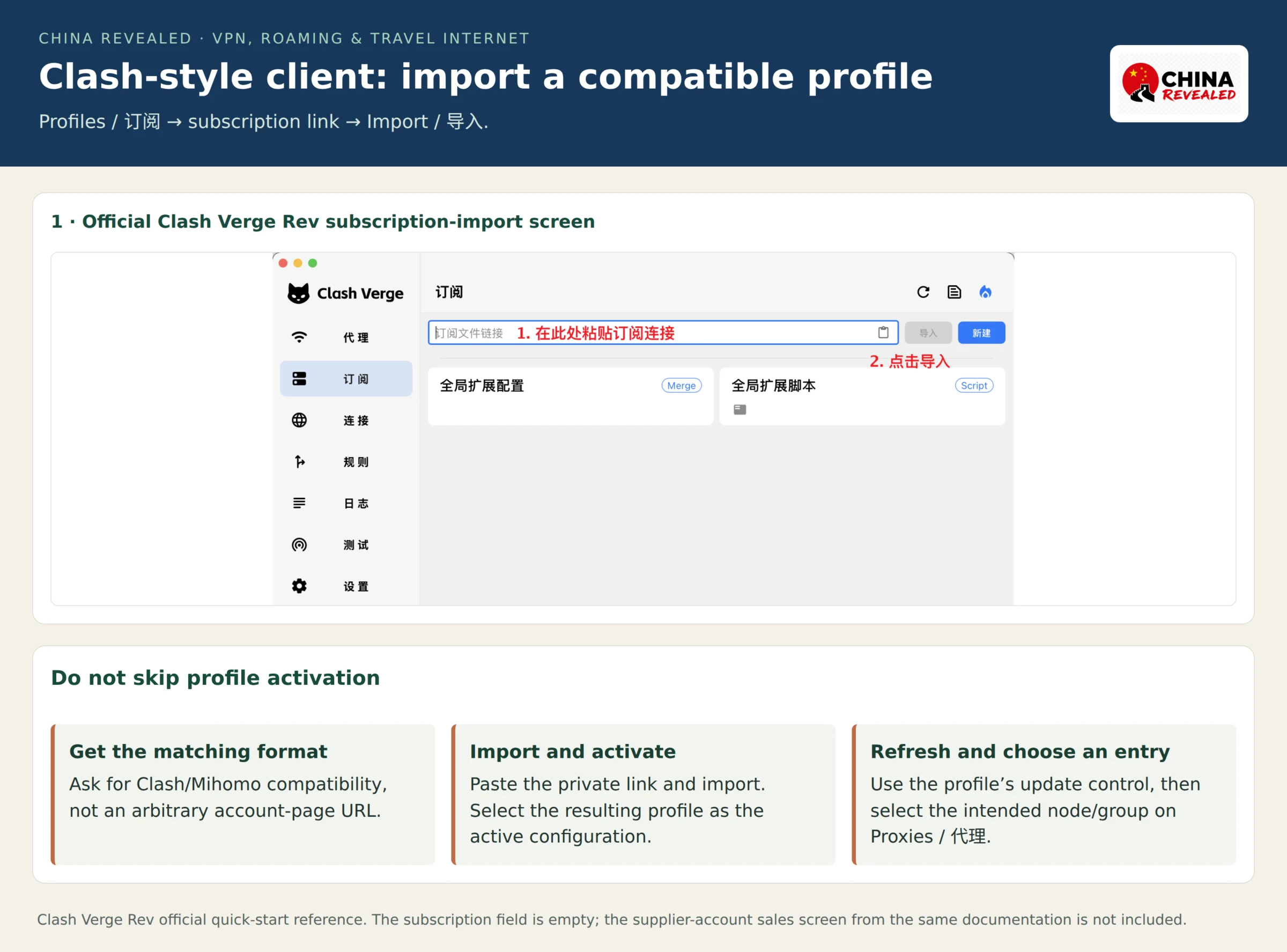
Choose routing, then enable the traffic connection
The common routing choices are:
- Rule / 规则: the profile’s rules decide which connections go through a proxy and which go directly. This is usually the starting point for a provider’s travel configuration.
- Global / 全局: traffic handled by the client goes through the selected global proxy/group.
- Direct / 直连: traffic handled by the client goes through the ordinary network, without that proxy.
Those choices do not by themselves send every program on the computer into the client. You also need a traffic entry method.
For normal browsing, enable System Proxy / 系统代理. Applications that follow the operating system’s proxy setting can then use the client. If another app does not follow that setting, TUN mode can capture a broader range of traffic through a virtual network interface. Follow the client’s documented setup and permission prompts; on a work-managed device, use your IT team’s instructions.
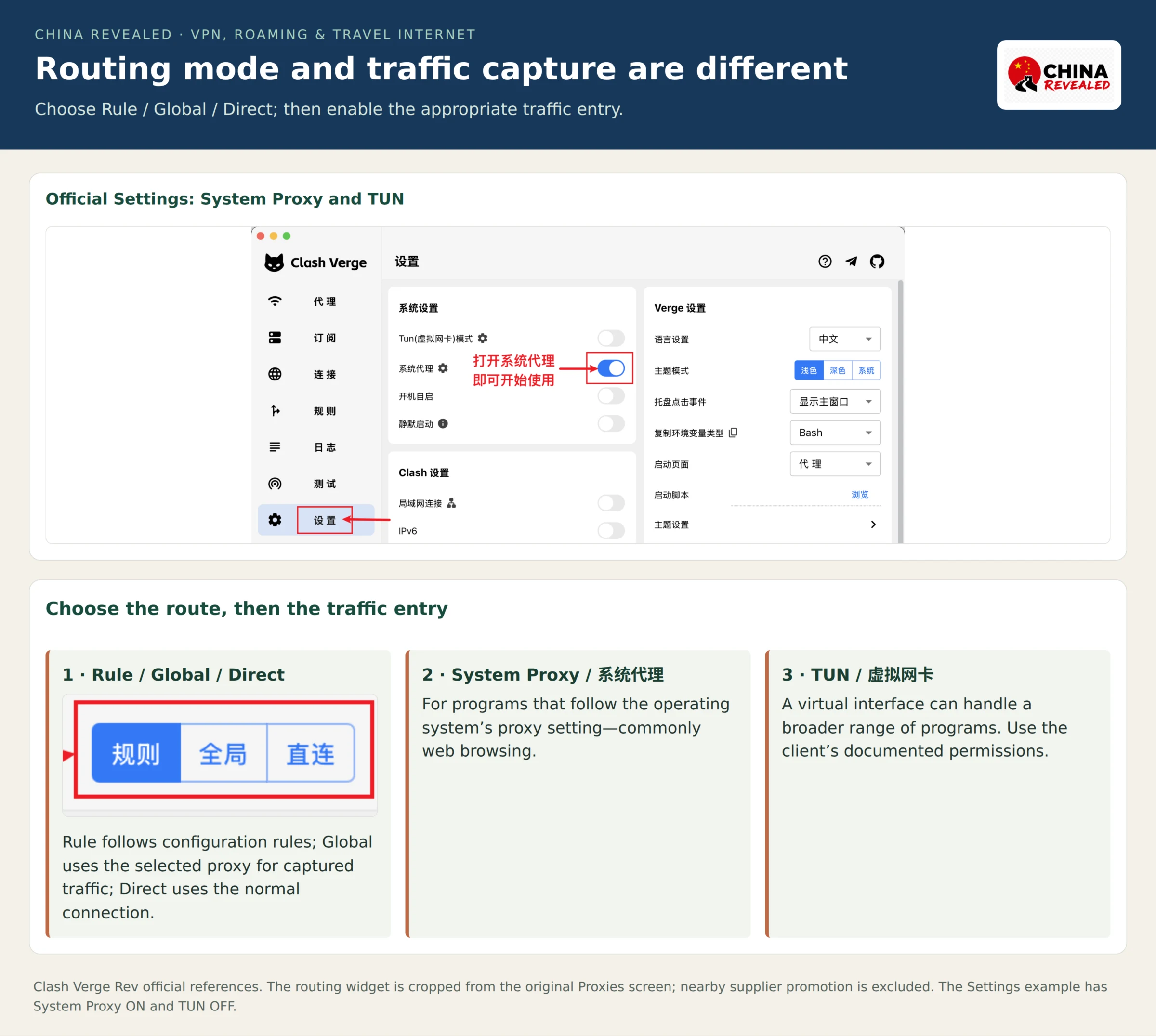
Now test the browser and the separate app you actually need. A browser working does not establish that another program is using the same route. When you stop using the desktop client, turn System Proxy/TUN off before exiting, so the computer is not left pointing to a stopped local proxy.
7. Connected, but your apps still do not work?
Start by identifying the connection: travel mobile data, a mainland SIM or Wi-Fi. Keep one network selected while diagnosing it.
If everything is offline: disconnect the VPN/proxy and test ordinary internet access. On public Wi-Fi, complete the network’s own sign-in page first. Check that your travel line is selected, roaming is set as instructed, and the plan has not expired or run out of data.
If local apps work but overseas services do not: check the selected node and routing mode. Refresh the subscription, try another entry supplied by your provider, and use its current China setup. A well-known VPN brand is not a guarantee that today’s route is working.
If the browser works but another app fails: on desktop, check whether that app follows System Proxy or requires the documented TUN setup. On a phone, check that the VPN connection remains active. Some services also impose their own account or country restrictions; changing the network does not fix an account problem.
If the subscription will not update: check expiry, compatible format and the complete private URL. Ask support for a replacement or supported file import if needed. Do not disable certificate verification just to force an untrusted link to load.
If a payment or local travel app behaves strangely: disconnect the proxy briefly or use the provider’s appropriate rule-based configuration, then retry over a normal connection. Do not change multiple network settings or run two competing VPN apps at once.
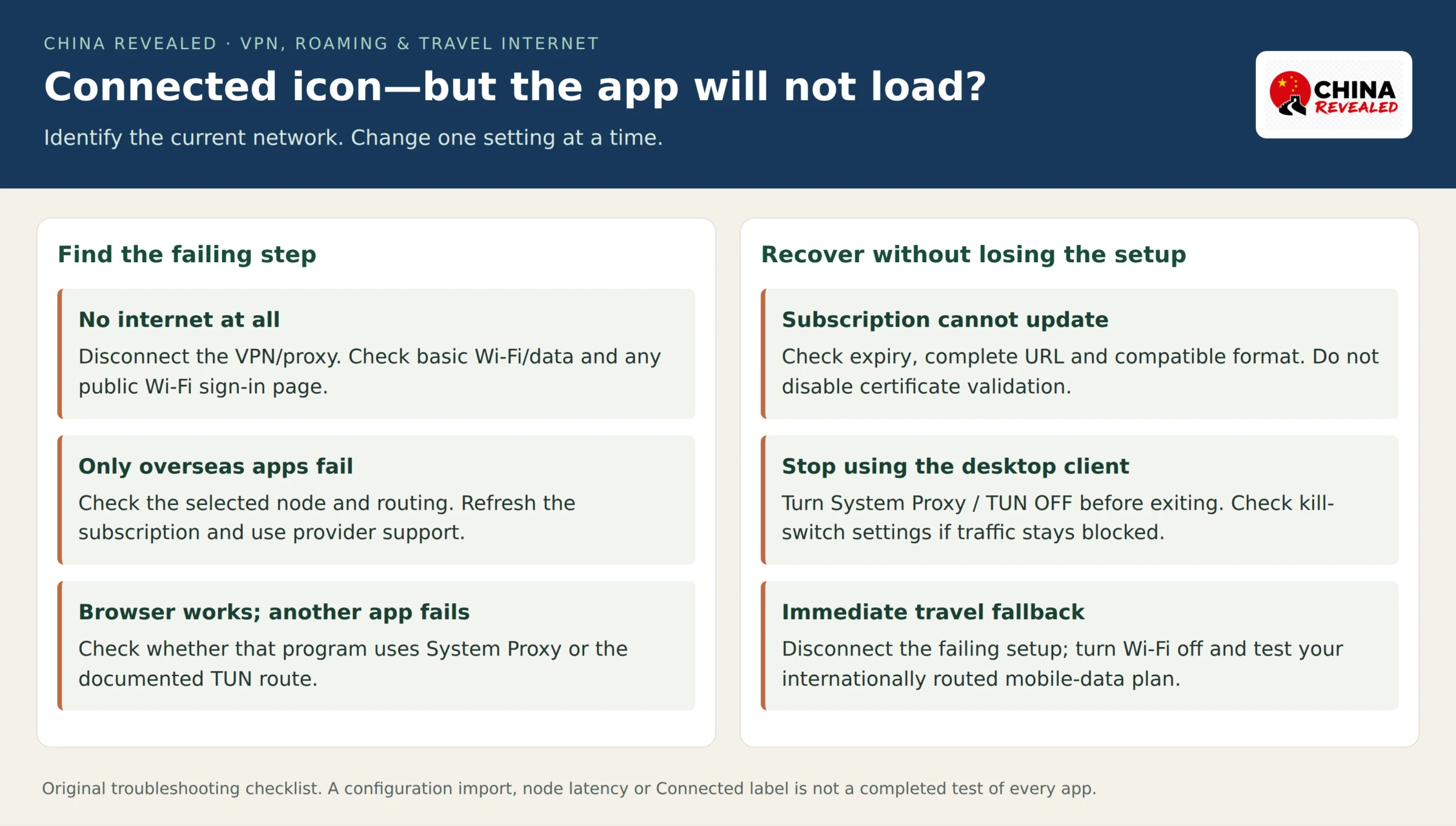
For an immediate fallback, disconnect the failing VPN, turn Wi-Fi off and try your internationally routed travel-data line. Save the provider’s support instructions privately and keep your hotel address, bookings and a translation backup available offline.
Book hotels, flights, train tickets, attractions and other travel services on Trip.com.
8. Quick answers before you fly
Do I need both an eSIM and a VPN?
Not necessarily. If the travel plan provides the overseas app access you need through mobile data, it may be enough. A VPN is useful when you want to use ordinary local Wi-Fi or a mainland SIM for those same services. A travel eSIM and a VPN are complementary tools, not two compulsory purchases.
Can I just use my home carrier’s roaming?
Yes, if its China coverage, routing and charges meet your needs. You do not need an eSIM simply because you are travelling to China. Check data limits, tethering and the price before departure.
Will a phone hotspot pass the connection to my laptop?
A travel-data hotspot can share that data route when the plan permits tethering. A VPN running on the phone is different: do not assume the phone’s VPN also covers devices connected to its hotspot. Test the laptop independently or configure its own supported client.
Does the VPN icon mean everything is private and accessible?
No. It shows that a device connection is active, not that every app uses the intended route or that you are anonymous. Keep apps updated, use HTTPS and sign into sensitive accounts only through their genuine apps or websites.
What would I prepare for a one-week trip?
I would choose a compatible travel-data or roaming plan, prepare one suitable VPN setup if I need local Wi-Fi, and save the configuration and support instructions before leaving. I would not install five competing apps, buy a long subscription based on a ranking, or leave the first test until I am trying to contact my hotel.
About China Revealed
China Revealed is an independent English-language travel guide dedicated to China.
We bring together China travel guides, destination information, local insights and practical travel resources in one place.
Our travel database covers China's provinces, cities, famous attractions, hidden gems, local cuisine, transportation, accommodation, visa requirements, digital payments, mobile connectivity and the other practical details travelers need to explore China.
We focus on depth, careful research and accuracy. Our guides combine official sources, detailed destination data, local knowledge and regularly updated information to give reliable, practical travel advice.
Whether you're visiting China for the first time or exploring beyond the popular destinations, China Revealed is an all-in-one resource for discovering the real China.
China Revealed — Your practical guide to China.
Some links on China Revealed, such as Trip.com booking links, are affiliate links. If you book through them, we may earn a commission at no extra cost to you. This does not change what we recommend.