

How to Set Up Your Phone for China: eSIM, Bank SMS & Offline Backups
To set up your phone for China, choosing between a SIM and an eSIM is only the start: you also need working apps, bank verification and an offline way to reach your hotel.
For a short trip, I recommend an unlocked, compatible phone with a travel-data plan, your home number kept available for important messages, and a small offline travel folder. Add a mainland SIM when you actually need a Chinese number for calls or local services. The mistake is expecting one purchase to solve all four jobs.
Quick takeaways
- Check the exact package: data-only, activation clock, hotspot allowance and internet routing—not just “China eSIM.”
- Use the travel line for data; keep your bank’s registered number available for SMS. Turning off home-line data roaming is different from turning off that line.
- Test apps on each connection. An eSIM working with WhatsApp does not make hotel Wi-Fi work the same way.
- Download your Chinese hotel address, bookings and translation backup. Open them with Wi-Fi and mobile data off before departure.
- If data fails, check the line, roaming, network and plan before deleting anything. Keep the installed eSIM for support to diagnose.
In this guide
- 1. Choose a setup that matches your trip
- 2. Read six things on the plan page before paying
- 3. Check carrier lock and label your lines
- 4. Set up iPhone data, calls and SMS separately
- 5. Set up Android using the same two-line logic
- 6. Keep bank SMS separate from internet access
- 7. If you buy a mainland SIM, test it before leaving the counter
- 8. Test the apps, not just the connection icon
- 9. Make an offline folder you can open without internet
- 10. If you land and mobile data does not work
1. Choose a setup that matches your trip
I separate the decision into two questions: How will I get data? Which phone number must remain reachable?
| Setup | When I would choose it | What still needs checking |
|---|---|---|
| Travel eSIM plus home SIM | A short visit with maps, messaging and bookings | Phone compatibility, routing, activation and home-number roaming |
| Home-carrier roaming | A China-inclusive plan with acceptable prices and data allowance | Speed limits, charges, SMS delivery and app access |
| Mainland carrier SIM plus home SIM | You need a +86 number for local calls or a particular service | Passport registration, voice/SMS allowance and available SIM slots |
| International travel SIM in a physical slot | Your phone cannot use eSIM, but accepts another carrier’s SIM | Whether it includes a number, its routing and which home SIM you must remove |
A plastic card can be a mainland SIM or an international roaming SIM. An eSIM can be local or internationally routed. The format does not determine calls, SMS or app access.
If removing your home SIM would leave your bank number unreachable, solve that before buying another card. Check which two lines your exact phone can keep active together. An eSIM-only phone cannot take a physical SIM.
2. Read six things on the plan page before paying
Open the full package details rather than choosing from the cheapest headline price. On a marketplace such as Trip.com, different listings can come from different suppliers.
| Check | What you need to establish |
|---|---|
| Data, calls and SMS | Does it explicitly include a phone number? Can it receive ordinary SMS and make calls? Data-only means those services are absent. |
| Coverage | Mainland China only, or also Hong Kong and Macau? Your transit stop may need separate coverage. |
| When time starts | At installation, manual activation or first connection to a supported network? Is there a deadline that starts it automatically? |
| Data allowance | Total GB or daily GB? How does the daily allowance reset? What speed follows the high-speed allowance? |
| Hotspot | Is tethering allowed, and does a separate sharing allowance or fair-use limit apply? |
| Routing and support | What does the supplier say about Google, Gmail and WhatsApp? Where are installation instructions, support and cancellation terms? |
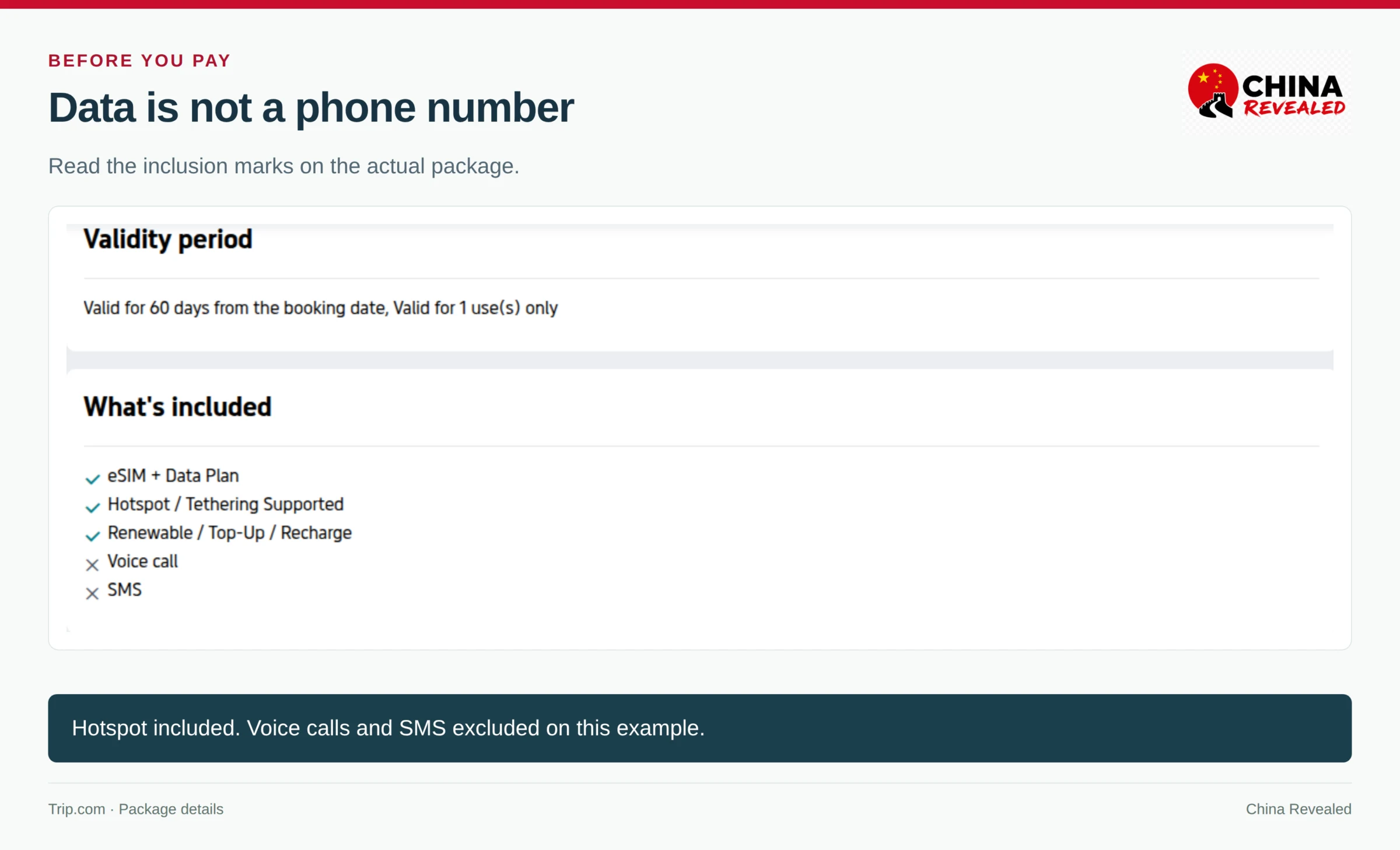
“Unlimited” does not necessarily mean unlimited high-speed data. A plan with 3 GB of fast data per day can become much slower after that allowance. A laptop hotspot can use it quickly through updates, video calls and cloud sync.
I would save the chosen package’s terms, order reference and support route before flying. Keep the eSIM installation code private; it is not something to post in a travel group.
Browse China eSIM options through our Trip.com eSIM link. Compare the specific package using the checks above. The link opens a selection of products, not one universal plan.
Installation is not necessarily activation
Installing an eSIM adds its profile to your phone. Starting the plan begins its service period. Those can happen at different times.
For example, Nomad’s current China page allows advance installation and says the plan normally starts on connection to the destination network. It also says an unused plan will start automatically after 60 days from purchase, and that some plans require manual activation. That is a product example—not a rule for every eSIM.
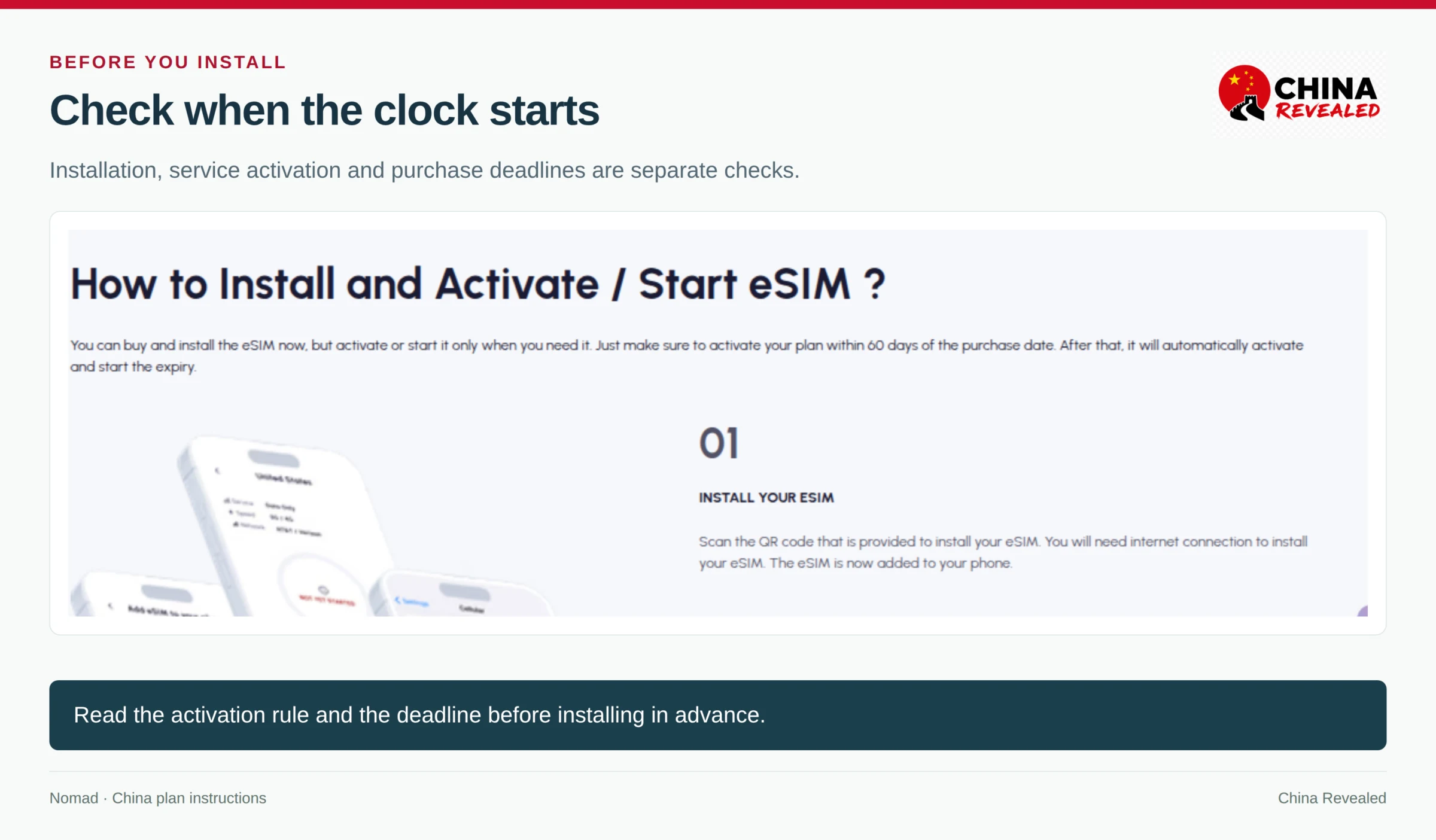
Once you have checked the activation rule, install on reliable Wi-Fi before departure. Use the provider’s in-app installation when available, scan the supplied QR from another screen or printout, or use its manual activation details. Do not assume you can scan a QR displayed on the same phone with its camera.
An installed China-only plan may not connect to a supported network while you are still at home. That alone does not mean installation failed. Check that the line appears in settings and that the provider shows the correct installation status.
3. Check carrier lock and label your lines
On iPhone, open Settings → General → About → Carrier Lock. Some regional versions call it Network Provider Lock. Look for No SIM restrictions. If it is locked, ask the original carrier about unlocking before buying another provider’s SIM or eSIM.
Also confirm eSIM support for your exact model and the country where it was sold. A model family name alone is not enough.
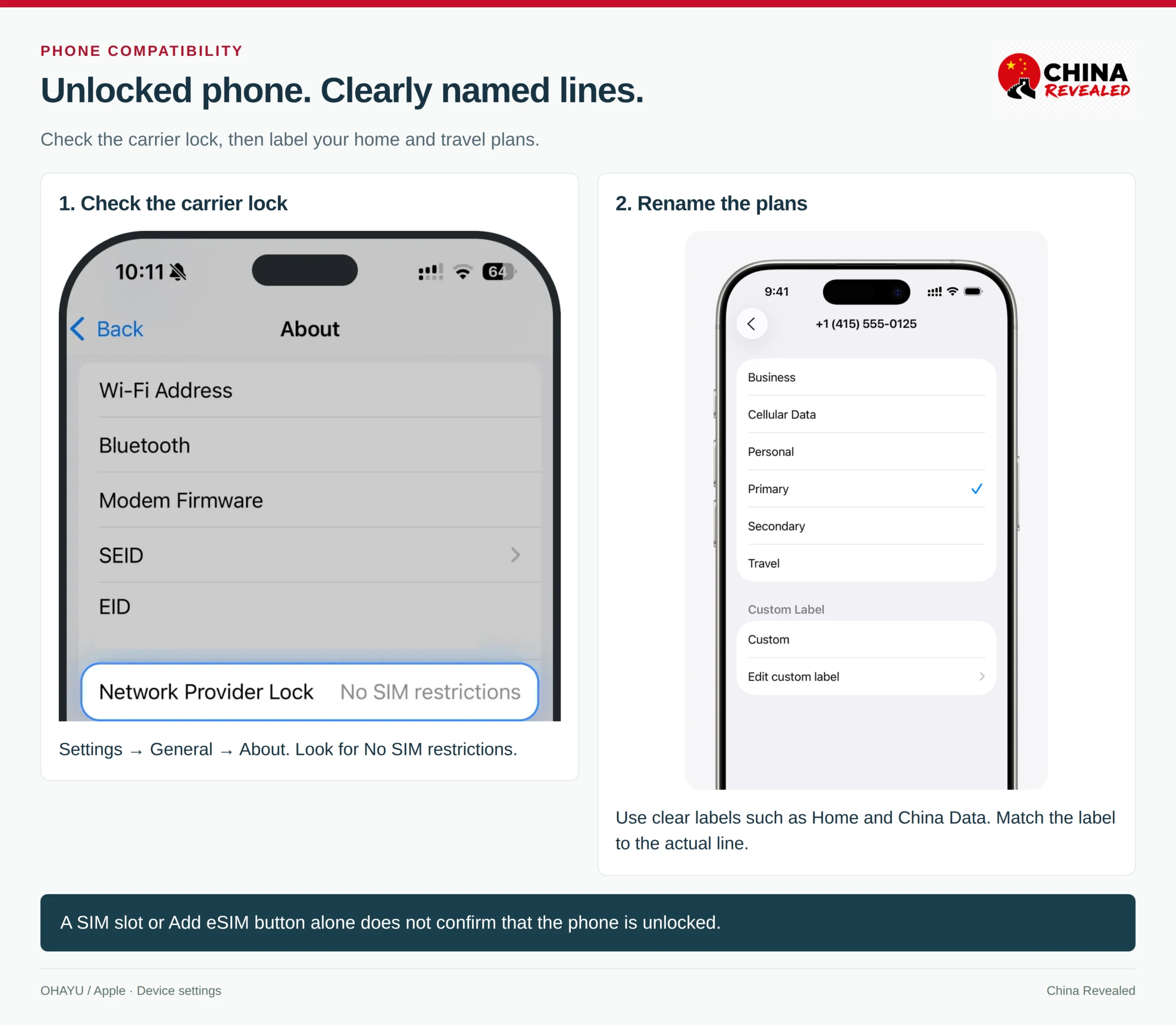
After installation, go to Settings → Cellular / Mobile Data, open each line and change Cellular Plan Label. I recommend Home and China Data rather than leaving two confusing “Primary” and “Secondary” labels. The official illustrations use sample labels; choose according to your own lines.
On Android, search settings for SIMs, SIM manager or eSIM. Check the manufacturer’s compatibility information and the original carrier’s lock status. Having an “Add eSIM” option does not by itself confirm that another carrier’s profile will be accepted.
4. Set up iPhone data, calls and SMS separately
Make the travel line your mobile-data line
Open Settings → Cellular / Mobile Data → Cellular Data and select your travel line. Then turn Allow Cellular Data Switching off for a predictable travel setup. Otherwise, the phone may use data from the other line in some circumstances.
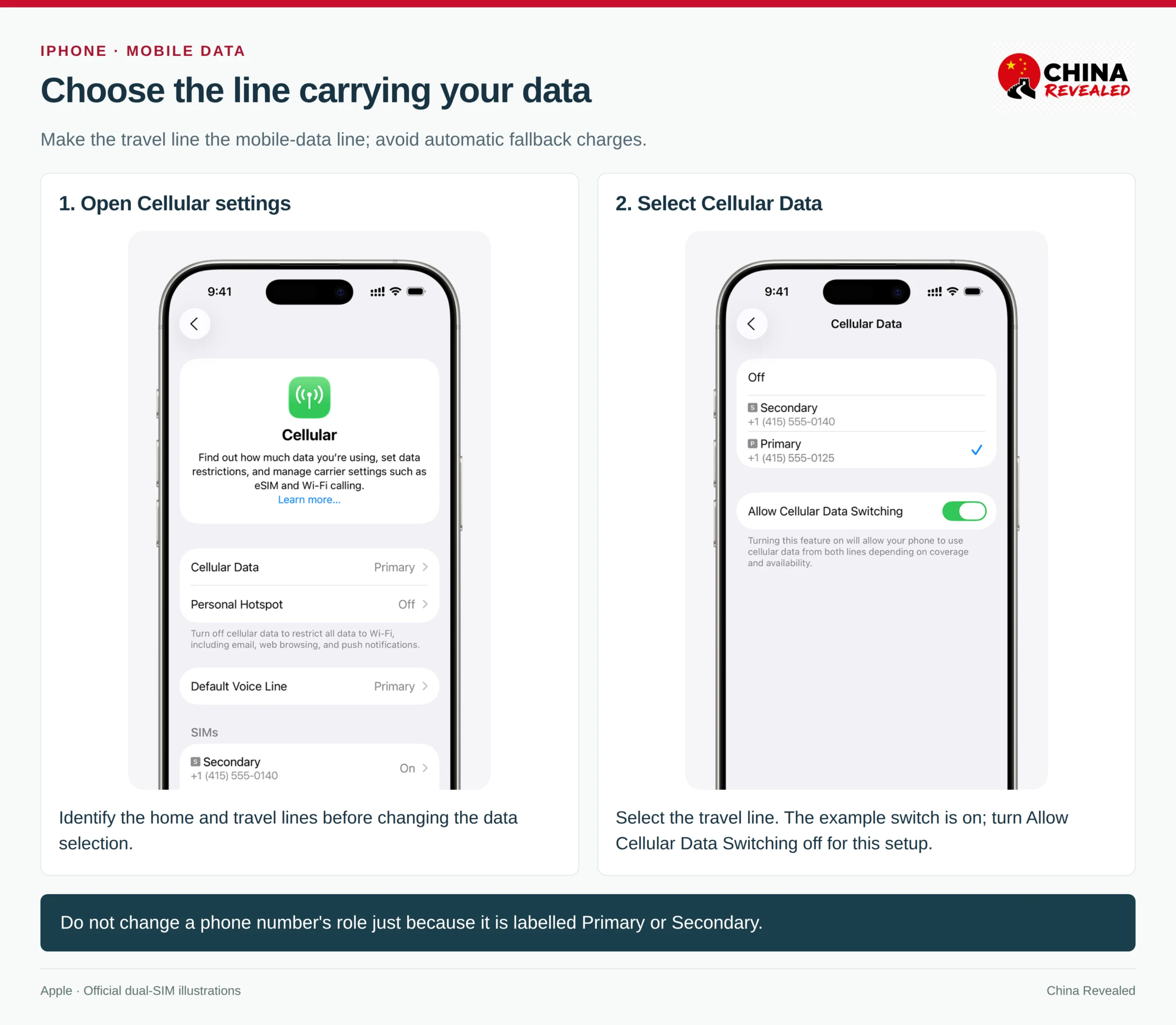
When you turn switching off, some calls can interrupt data or make the other line temporarily unavailable. Finish the call and retry before treating that as a broken eSIM. I would change the setting for a particular call only after checking the carrier charges.
Keep your home number available for important messages
Leave the Home line enabled if you need its incoming SMS or calls. Set Default Voice Line to your home number, or to a local voice-capable line if that is what you intend to use for calls. A data-only eSIM is not a working voice line just because you can select it in a menu.
For a new message, check From and choose the intended SMS-capable line. Existing contacts and conversations may remember another selection.
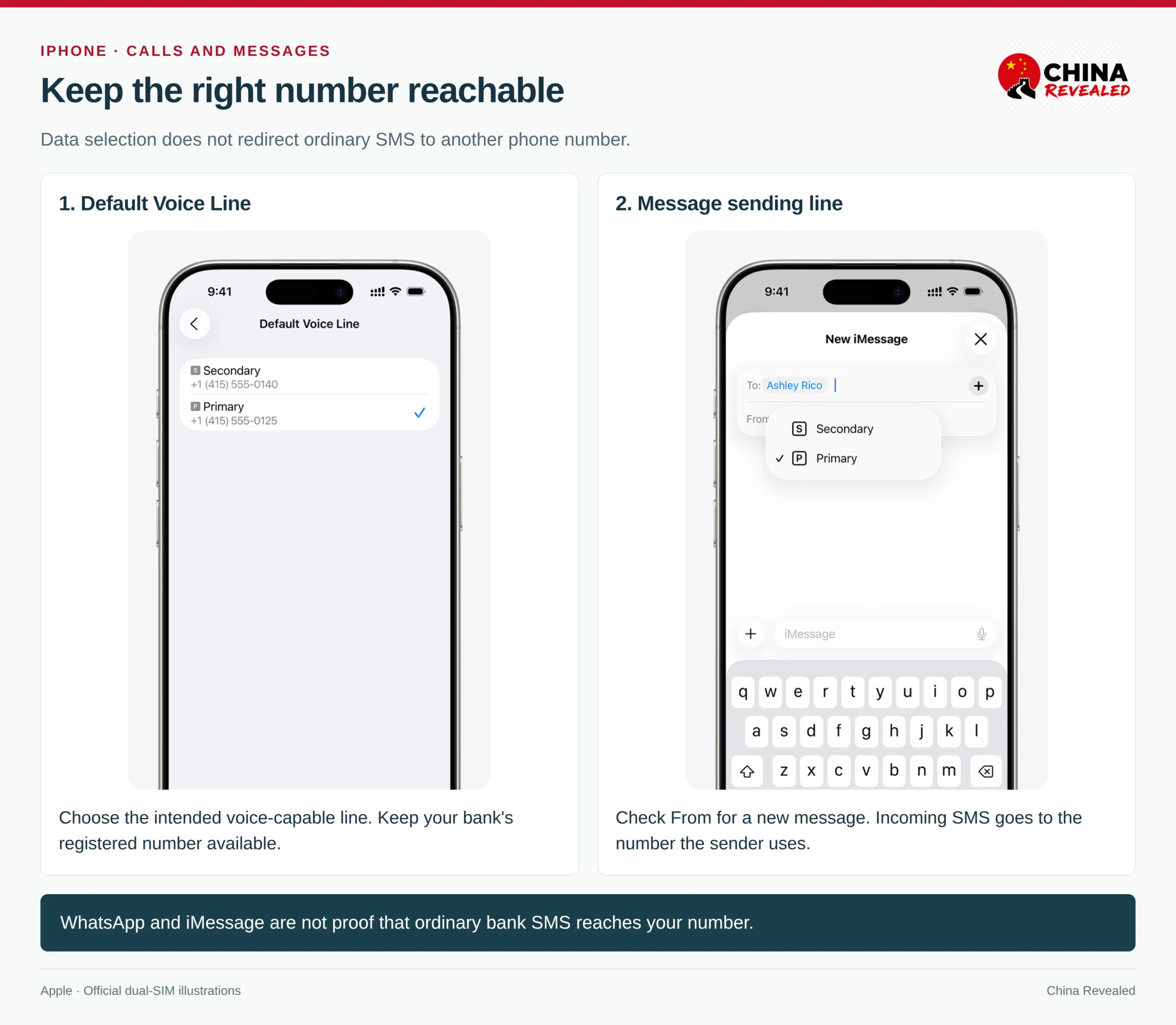
Choosing a default SMS line does not move incoming messages between numbers. If your bank knows your home number, a new Chinese number cannot receive that bank’s codes without changing the bank’s records.
Manage roaming one line at a time
Open the individual line under Settings → Cellular / Mobile Data → SIMs and find its Data Roaming setting. Some layouts place it under Cellular Data Options.
For the home line, keep data roaming off unless you deliberately want to use its China roaming plan. For the travel eSIM, enable data roaming if its installation instructions require it. A mainland local SIM normally does not need international data roaming for ordinary mainland use.
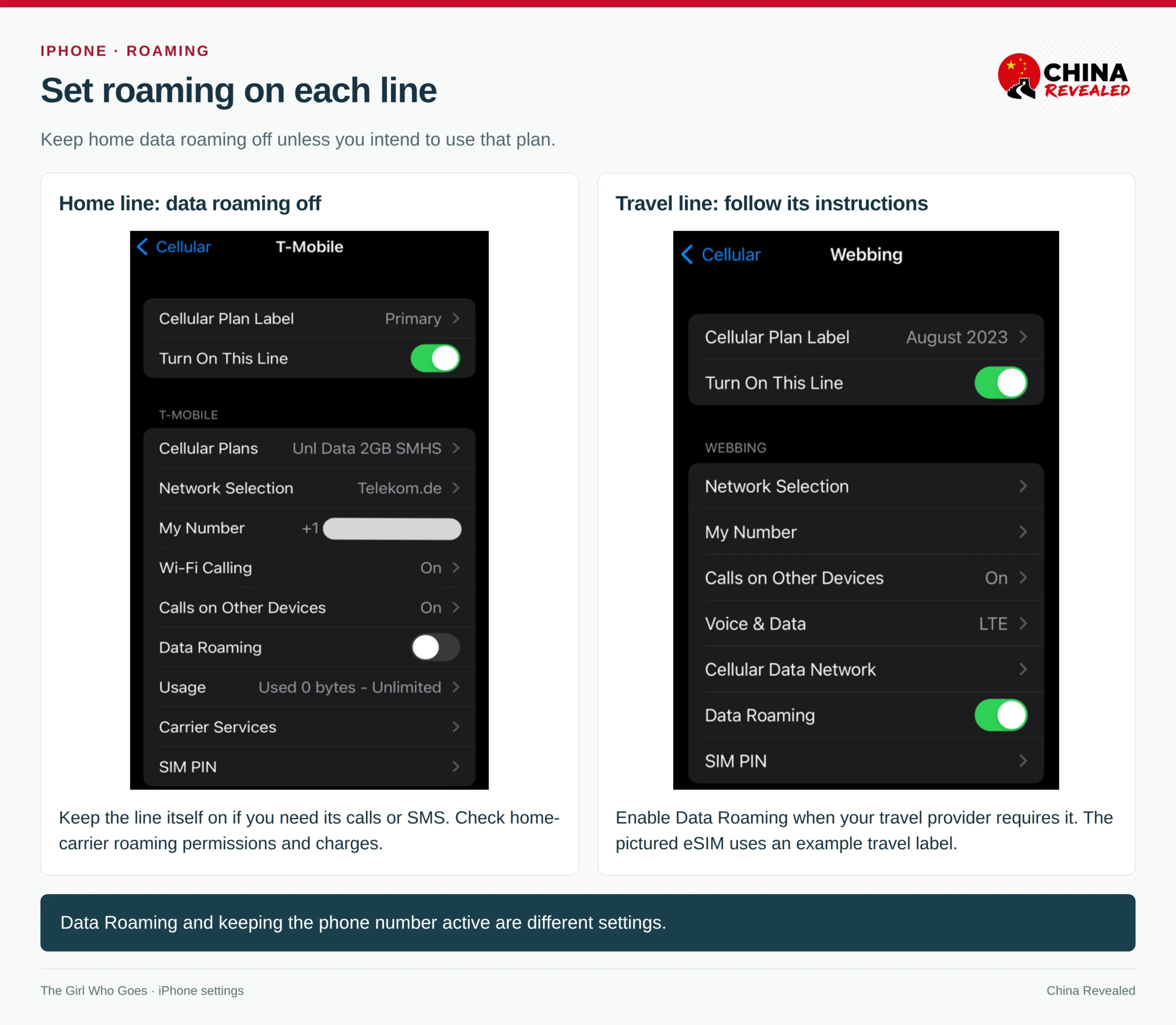
The phone’s Data Roaming switch controls data use. Your carrier account’s permission for international voice and SMS roaming is a separate condition. Turning the home line off entirely can stop its messages; keeping it on can incur call or message charges under your carrier’s terms.
5. Set up Android using the same two-line logic
On Pixel, open Settings → Network & internet → SIMs. Check Mobile data, Calls and Texts separately. On Samsung, start with Settings → Connections → SIM manager; look for the preferred SIM selections and each line’s mobile-network settings.
Use the travel SIM/eSIM for data. Choose an appropriate voice/SMS-capable line for calls and outgoing texts. Keep the bank’s registered line enabled and check roaming for each line. Turn off automatic data switching or backup-data use where that feature is offered and you do not intend to use it.
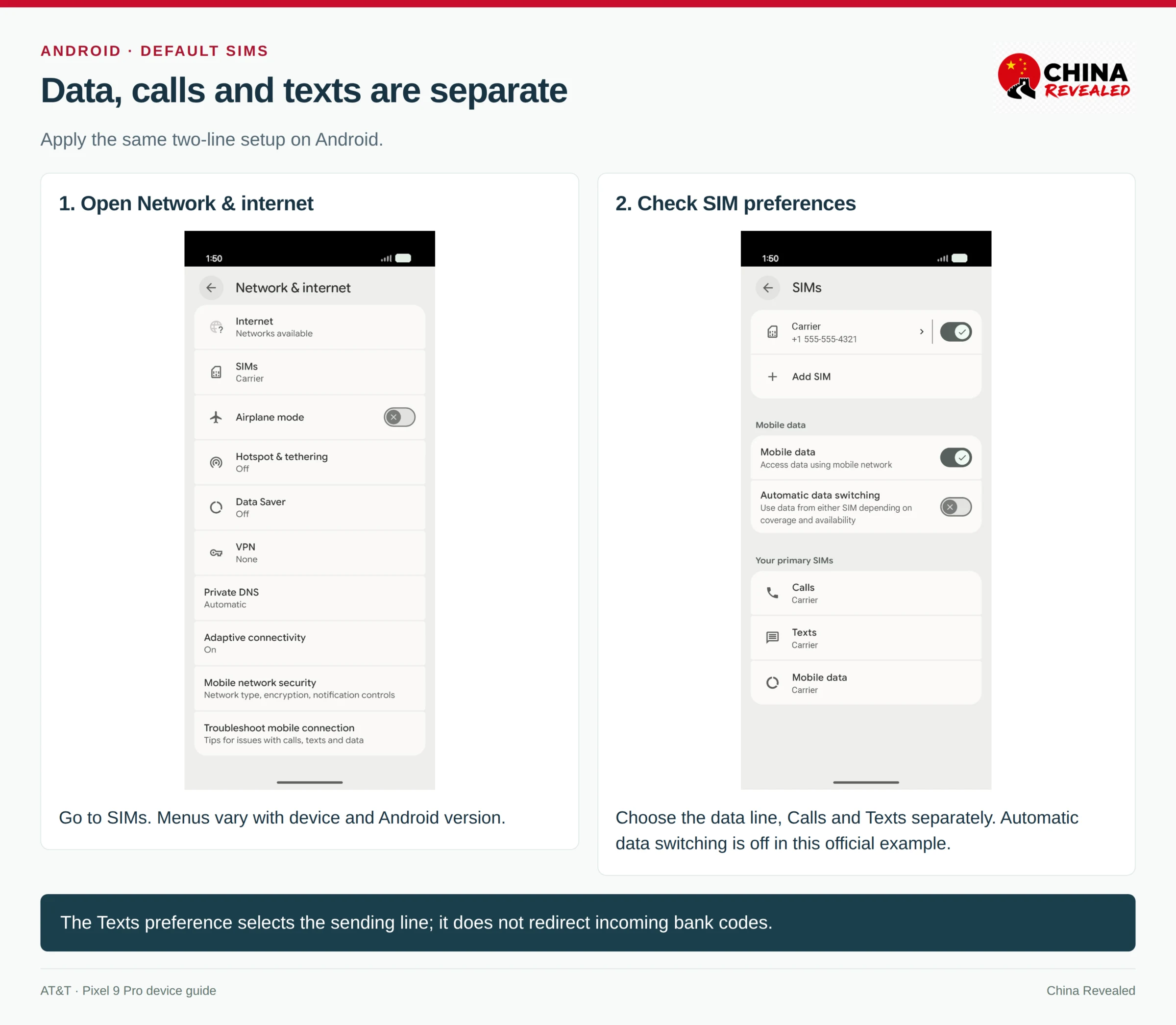
Check the selected number and line; menu positions vary by phone.
6. Keep bank SMS separate from internet access
Before departure, ask your home carrier whether your number can register on a network in mainland China, receive SMS and use voice roaming. Check incoming-message charges, outgoing-message charges and call prices. Do not assume “free incoming SMS” means free calls or a free daily roaming pass.
Then check your bank’s verification method. Open its official app, confirm you can sign in, and make sure you understand any approval, authenticator or recovery method already supported by that bank. Keep an appropriate backup method available before you travel.
A normal SMS arriving proves that one message reached that number. It does not establish that every bank’s OTP sender will deliver through the same route. Likewise, a WhatsApp message or blue iMessage is internet messaging, not a test of ordinary SMS.
After landing, have a trusted contact send a plain SMS to your home number. Check the relevant line has service. If a bank code then fails, check the bank’s registered number and contact the bank or carrier through their official channels rather than repeatedly requesting codes.
Wi-Fi Calling is a possible extra, not my primary SMS plan. Support in China, SMS capability and charging depend on your home carrier. Simply joining hotel Wi-Fi does not guarantee it will work.
7. If you buy a mainland SIM, test it before leaving the counter
Take your original valid passport and unlocked phone to an official carrier outlet or a visitor service counter that handles foreign-passport registration. Ask for a plan with a mainland +86 number, incoming SMS and voice calls if those are the features you need. Some travel SIMs are data-only even when they are physical cards.
Have staff confirm the data allowance, call allowance, SMS terms, expiry and top-up or closure process. Then check three separate results: mobile data loads a fresh page, an ordinary call connects, and an ordinary SMS reaches the new number.
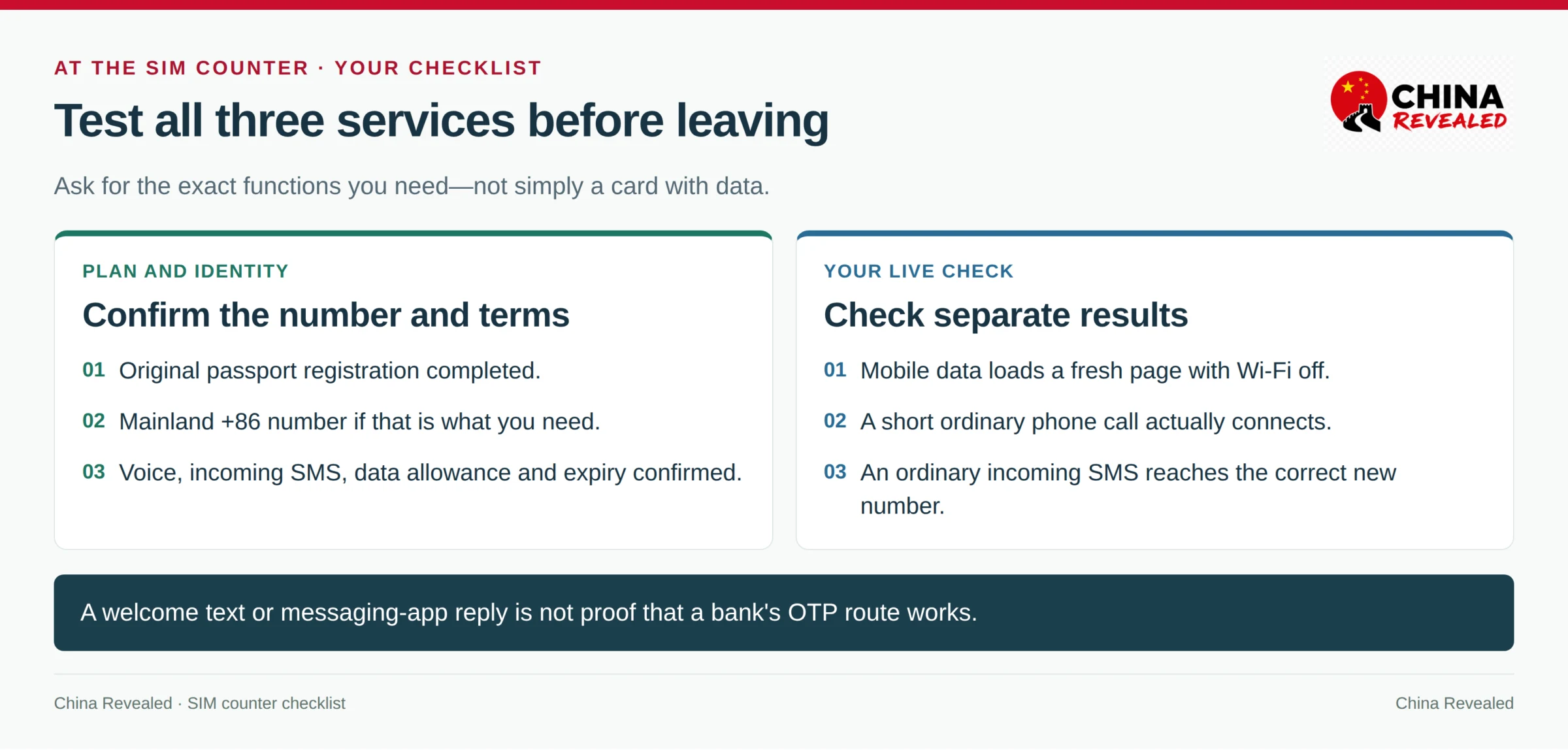
Ask staff to help make a short test call to an agreed number and arrange a plain incoming SMS. A welcome message can show that a card has activated, but it is not a bank-code test. Check which SIM the phone used for the call and message.
Two useful questions to show staff:
Does this plan have a Chinese phone number and receive text messages?
这个套餐有中国手机号码吗?可以接收短信吗?Please help me test a phone call and receiving a text message.
请帮我测试一下打电话和接收短信。
Keep the SIM holder, new number, receipt and carrier support route. If you only need the number during a short stay, avoid making it the permanent recovery number for accounts you will still use after the SIM expires.
8. Test the apps, not just the connection icon
A phone can show 5G and still fail to load Gmail. Conversely, a slower connection may be perfectly adequate for maps, messages and paying for lunch.
Ordinary mainland local data and hotel Wi-Fi should not be assumed to provide access to Google, Gmail or WhatsApp. See our VPNs in China guide for hotel Wi-Fi and local SIM setups. Some international roaming and travel-eSIM products use an overseas data route. That route belongs to the selected mobile-data service, not to every connection your phone uses.
For example, Airalo describes overseas routing for its China-connected travel plans. The Trip.com listing illustrated below gives its own Hong Kong/Singapore IP-routing description. Check the current statement for the specific product rather than treating the word “eSIM” as the guarantee.
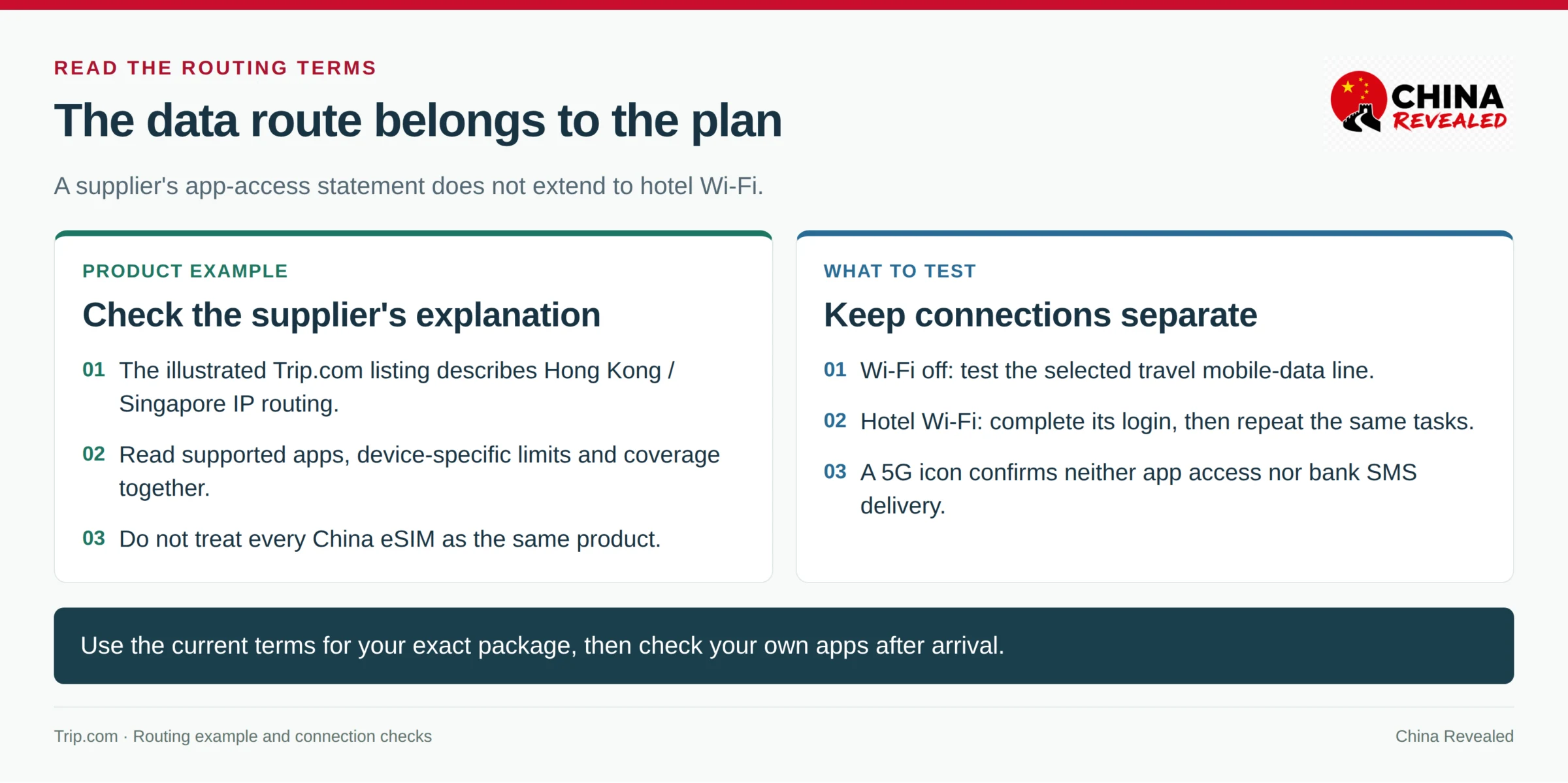
Run this check before departure—and repeat it in China
At home, use this list to finish app installation, permissions, language settings, logins and backup methods. A China-only plan need not be active yet. The home test prepares your apps; it does not certify their later China network access.
After arrival, turn Wi-Fi off in Settings, verify which SIM is carrying data, and repeat the checks. At the hotel, switch to its genuine Wi-Fi, complete any required login and test again. Use fresh content rather than a page or conversation already cached on your phone.
| Task | What I would actually test |
|---|---|
| Load a fresh search if it is part of your travel routine. | |
| Gmail | Refresh the inbox and open a recent message; do not rely on an old cached booking. |
| Send a new message and get a reply; test a call separately if you depend on calls. | |
| Maps | In Amap, find the correct Chinese hotel branch and open its route. Google access does not replace a suitable local map. |
| Translation | Translate a typed phrase online, then test your downloaded language pair offline. |
| Bank verification | Confirm your normal official login/approval route and access to its registered number; do not make a purchase just to test. |
| Open the account and send a new message. Messaging success and payment readiness are different checks. |
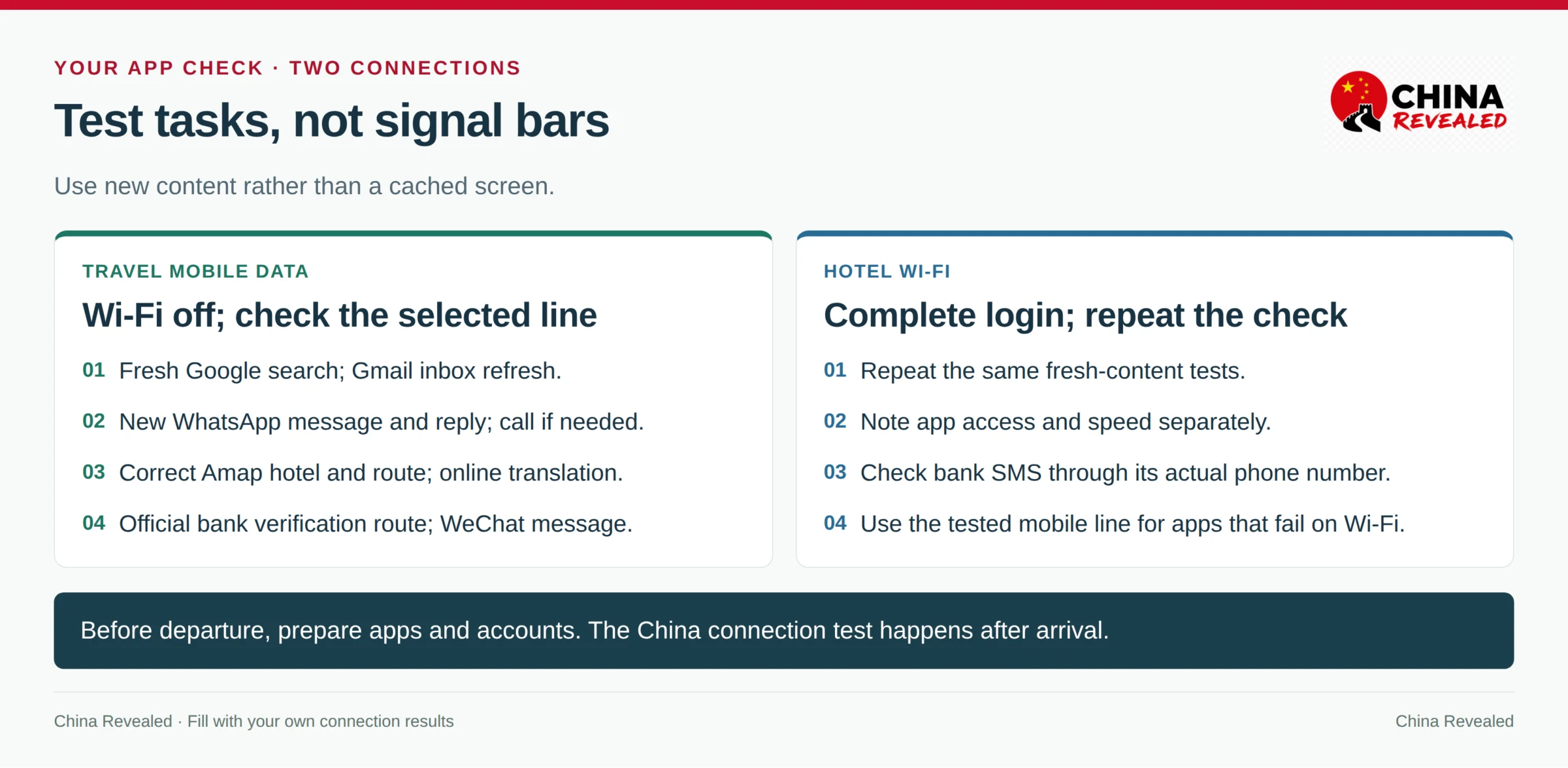
If WhatsApp works on the travel line but not on hotel Wi-Fi, return to the tested mobile-data line when you need it. If permitted by the plan, a phone hotspot lets a laptop use that phone’s mobile data; check the selected line, sharing allowance and data use first.
Set up WeChat and its payment requirements while you still have your usual number and connection. Our WeChat Pay tutorial explains the account, identity and bank checks separately.
9. Make an offline folder you can open without internet
I recommend one clearly named folder—China Trip Offline—rather than relying on a booking buried in Gmail.
Save the hotel’s Chinese name, exact branch, full address, entrance and telephone number. Save your flight and issued train confirmations, including Chinese station names, travel dates and train numbers. Also save the eSIM instructions, supplier support details and a few useful Chinese phrases.
Save Amap information, then save a separate copy
In Amap, open the correct hotel and tap Save / Favorites / 收藏, often shown with a star. Save your arrival terminal or station too. Take screenshots of the hotel details and the last walking section to the guest entrance.
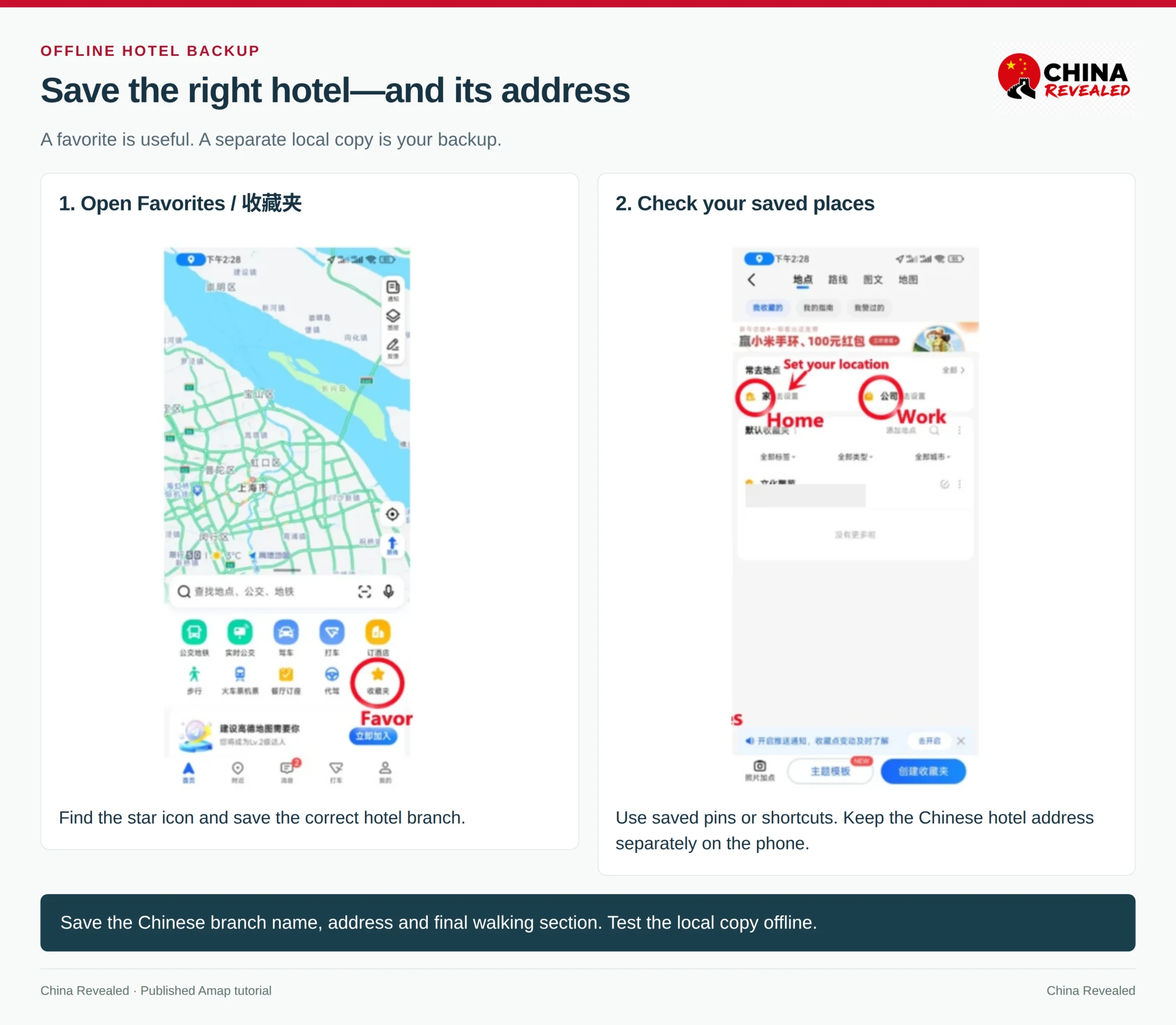
A saved place is not the same as a downloaded offline map. Where your Amap version offers offline city maps, download the relevant area on Wi-Fi; keep screenshots regardless. Fresh searches, route changes, live transit information and ride orders can still need data. Our Amap tutorial covers finding the right branch and comparing routes.
Download files onto the phone—not only into the cloud
Save confirmation PDFs and essential screenshots in local phone storage. On iPhone, use Files → On My iPhone where available, or download the file in your chosen app. On Android, use the local Downloads folder or a file manager. If you keep a document in iCloud Drive or another cloud app, explicitly download it for offline use.
Download the needed translation languages too. In Apple Translate, use the language-selection menu’s download option for English and Chinese where offered; Google Translate also offers offline language downloads. Open your actual language pair afterwards. Typed translation, voice input and camera translation can have different offline capabilities.
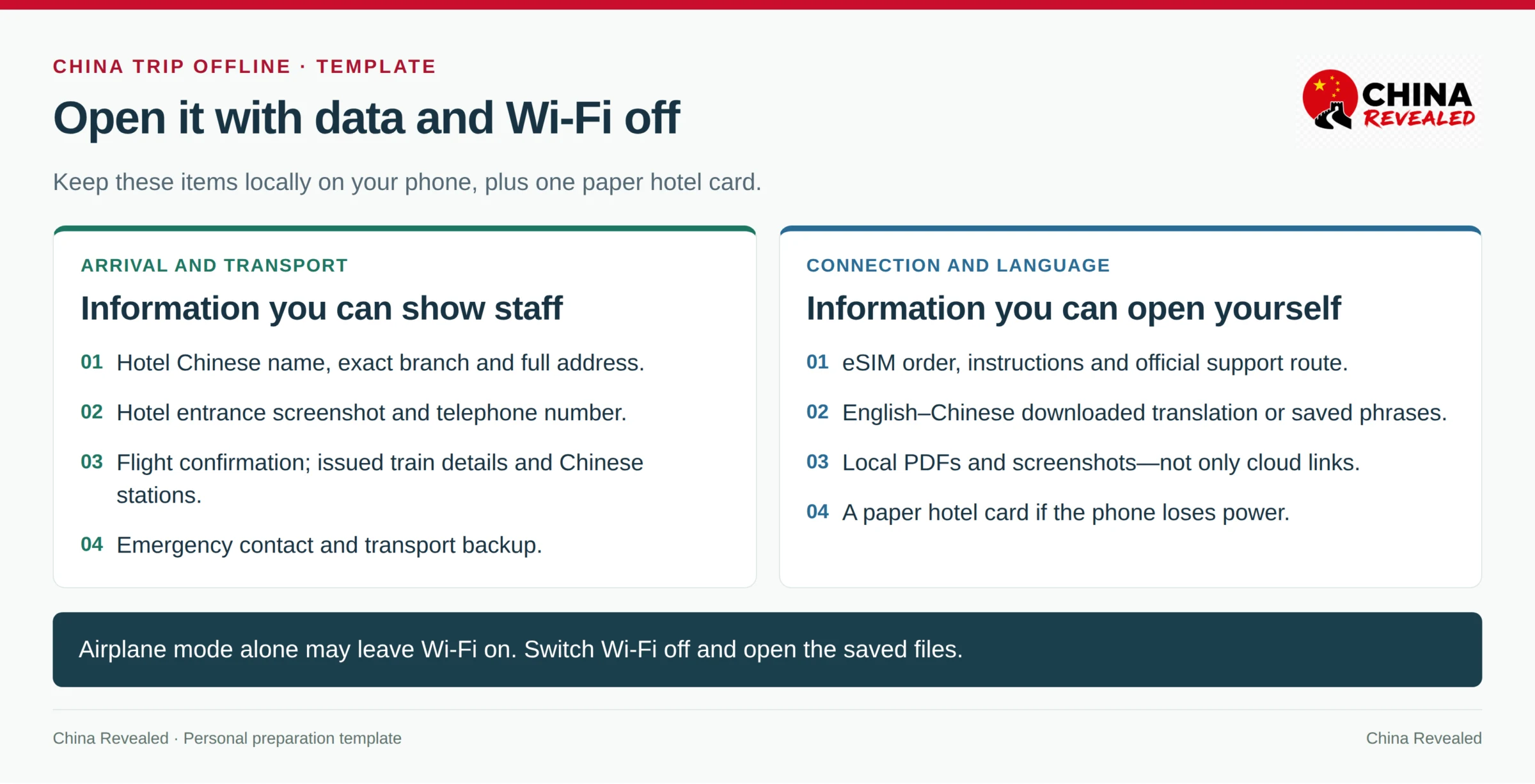
Before departure, enable airplane mode, turn Wi-Fi off as well, and open the folder. Check you can read the address, open the confirmation and access your translation backup. Restore your normal connection afterwards.
Keep one paper hotel card and an essential contact number outside the phone. A downloaded PDF cannot help if the battery is empty. Carry a charged power bank that meets your transport provider’s rules.
For the airport-to-hotel sequence, continue with Your First Day in China. A saved confirmation helps you retrieve a booking; it does not replace the passport required for hotel check-in or railway identity checks.
10. If you land and mobile data does not work
Work through this order instead of changing every setting at once.
| Step | Check and next action |
|---|---|
| 1. Correct line | Turn on the installed travel line and select it for mobile data. Check airplane mode is off. |
| 2. Roaming and activation | Follow that plan’s data-roaming instruction. Check that its validity has started correctly and data remains. |
| 3. Reconnect | Toggle airplane mode on for about 30 seconds, then off. If needed, restart the phone and allow it to register on a supported network. |
| 4. Separate Wi-Fi from mobile data | Turn Wi-Fi off and try a fresh page. If you need help online, use genuine airport/hotel Wi-Fi to contact support. |
| 5. Supplier settings and terms | Check the exact APN, supported networks, coverage and activation steps in your order. Change APN or manually select a network only as instructed. |
| 6. Support | Give the supplier the order reference, city, error and screenshots of the selected data line and roaming settings. Ask for the next step. |
A phone with no service needs a network-registration check. A phone that loads Amap but not Gmail may have a routing or app-specific problem. A banking app that opens but never receives an OTP needs a number/verification check. Those are three different faults.
Do not delete the eSIM as your first fix. Apple advises against doing so unless your carrier directs it. Some plans allow reinstallation; others require a replacement profile. Keep the existing line until the supplier confirms what to do. Deleting it also does not automatically cancel the paid service.
If you still cannot get connected, use your offline Chinese address and arrange transport through the official airport taxi queue or visitor desk. You can complete the remaining setup at the hotel instead of getting stranded outside arrivals.
My priority is a phone that can do the next real task: reach the hotel, read a message, navigate or finish an account check. Prepare those tasks before departure, repeat the checks on arrival, and keep the offline folder ready.
About China Revealed
China Revealed is an independent English-language travel guide dedicated to China.
We bring together China travel guides, destination information, local insights and practical travel resources in one place.
Our travel database covers China's provinces, cities, famous attractions, hidden gems, local cuisine, transportation, accommodation, visa requirements, digital payments, mobile connectivity and the other practical details travelers need to explore China.
We focus on depth, careful research and accuracy. Our guides combine official sources, detailed destination data, local knowledge and regularly updated information to give reliable, practical travel advice.
Whether you're visiting China for the first time or exploring beyond the popular destinations, China Revealed is an all-in-one resource for discovering the real China.
China Revealed — Your practical guide to China.
Some links on China Revealed, such as Trip.com booking links, are affiliate links. If you book through them, we may earn a commission at no extra cost to you. This does not change what we recommend.